
23 Free and Low-Cost Online Tools for Music Teachers
Are you a private music teacher looking to level up your lessons?
Check out this curated list of 23 free and low-cost tools to help you deliver engaging, effective lessons on any budget.
Trello ($0 - $6 monthly)
In today’s world of music education, staying organized is just as important as teaching technique or theory. If you’re juggling multiple students, lesson plans, practice logs, and scheduling, Trello is a simple, flexible tool that can streamline your workflow.
What is Trello?
Trello is a project management app that works like a digital bulletin board. It uses boards, lists, and cards to help you visually organize tasks, information, and schedules. Its drag-and-drop interface and collaborative features make it especially useful for teachers and students working privately (but is also useful in the classroom)! You can:
track individual student progress
manage lesson plans and materials
share assignments and practice logs
maintain an organized teaching schedule
streamline communication with students or parents
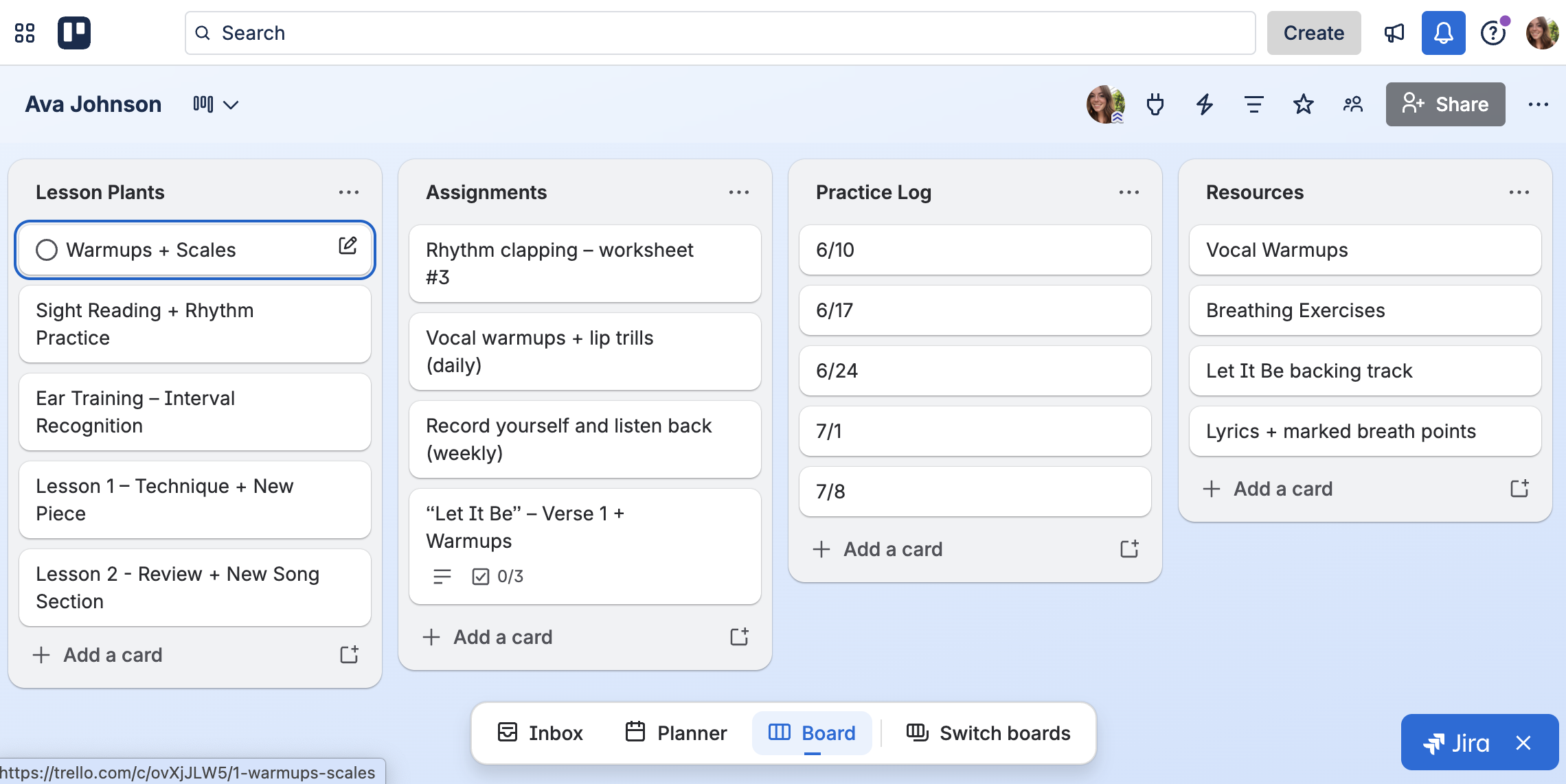
How to use Trello
1. Create a board for each student
This allows for a focused, personalized space where you and the student can interact. I.e:
Maria – Piano Lessons
Liam – Guitar Lesson Plans
2. Add key lists to each board
Use lists to create sections for different parts of your teaching:
Lesson Plans – cards for upcoming and past lessons
Assignments – weekly practice goals, exercises, or songs
Practice Log – a space for the student to comment on their daily practice
Resources – links to sheet music, videos, apps, etc.
Performance Prep – notes on recital pieces or exam requirements
3. Create reusable templates
Save time by creating a template board or card templates for weekly lessons. Each card might include:
Technique Goals
Repertoire Focus
Theory Concepts
Practice Instructions
Reference Links
4. Collaborate with students + parents!
Trello allows you to invite collaborators to each board. Students (and/or parents) can:
add comments or questions
upload recordings of their practice
check off completed assignments
access learning resources anytime
This creates transparency and fosters accountability between lessons.
5. Connect Trello’s to scheduling systems
Connect Trello with calendar apps like Google Calendar to keep track of:
lesson times
recitals or exams
makeup lessons
practice reminders
The Calendar ViewPower-Up helps you visually manage deadlines and important dates.
⭐ Tips for success
Set aside 10 minutes after each lesson to update your student’s board.
Encourage students to comment daily or weekly on their practice cards.
Use color-coded labels (e.g., red for incomplete, green for mastered).
Archive old lessons and assignments to keep the board clean.
Whether you're managing five students or fifty, Trello can help you streamline your teaching, deepen student engagement, and maintain a clear record of progress. Think of it as your digital assistant—one that helps you stay on track of your teaching materials and schedule.
Want to try it yourself? Visit trello.com and create your free account.
Google Classroom ($0)
As private music teachers, we wear a lot of hats: educator, planner, manager, and sometimes even tech support. Google Drive and Google Classroom offer a simple, centralized way to manage it all, keeping your teaching organized and your students accountable.
What is Google Classroom?
Originally designed for schools, Google Classroom is a powerful (and free) tool that can be easily adapted for one-on-one music instruction. It provides a central place to organize materials, share assignments, and communicate with students in a simple, easy-to-use format. You can create a “class” for each student or group, schedule posts in advance, and build a clear routine between lessons so students know what to focus on.
a central hub for lessons, resources, and communication
easy sharing of sheet music, videos, and assignments
a place for students to submit recordings or reflections
built-in grading and feedback options (great for goal-setting)
seamless integration with Google Drive, Docs, Slides, and YouTube
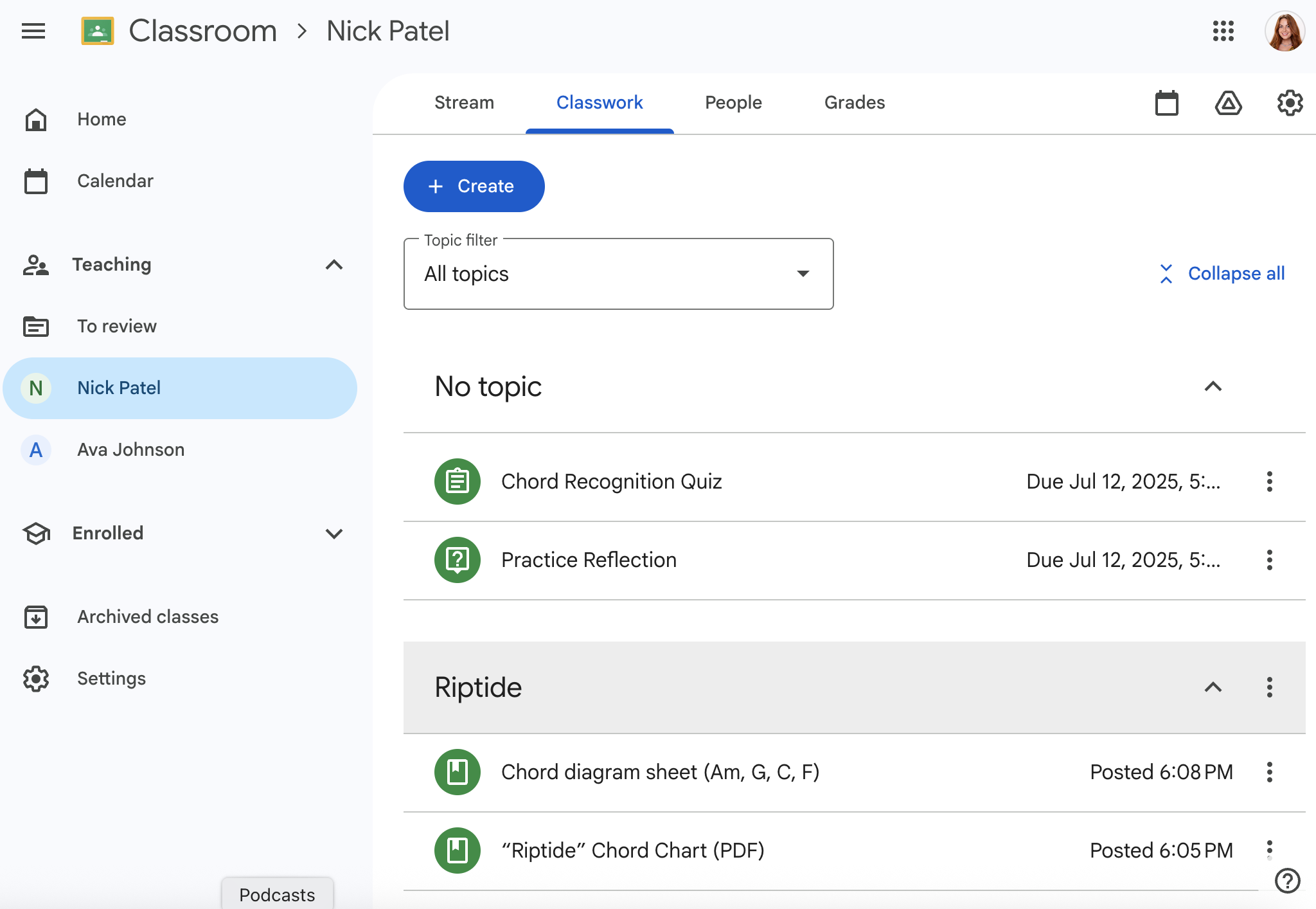
How to use Google Classroom
1. Create a class for each student
Each private student can have their own class, which acts as a digital folder and communication space.
Go to classroom.google.com.
Click the “+” sign and select “Create Class” for each student or group. I.e:
Ava – Piano Lessons
Daniel – Violin
Beginner Guitar Lessons
2. Organize with topics
Use topics in the “Classwork” tab to structure content:
Weekly Assignments – include scales, exercises, and repertoire
Practice Reflections – students can submit brief summaries or videos of their practice
Listening & Theory – assign YouTube videos, worksheets, or analysis tasks
Resources – store PDFs of sheet music, recordings, fingerings, and more
3. Use Assignments to create accountability
You can post assignments with due dates, attach files, and even allow students to respond with audio or video submissions. I.e:
Assignment: Practice “Minuet in G” with focus on phrasing and dynamics.
Instructions: Submit a video by Sunday.
Attachments: sheet music, PDFs, reference recording
4. Encourage reflection and progress tracking
Create weekly or monthly assessments and check-ins with Google Forms. Ask students to reflect, examples include:
“What went well in practice this week?”
“What was challenging?”
“What are your goals for the next lesson?”
You can link the form directly into the “Classwork” section for easy access.
5. Communicate easily
Use the Stream page to post announcements, reminders, and quick updates. Examples are:
“Don’t forget your recital piece this week!”
“Check out this new video on vibrato technique!”
Students (and parents, if invited) can comment or ask questions right in the platform.
6. Use Google Drive to stay organized
All class materials are automatically stored in a linked Google Drive folder, making it easy to keep track of:
Archived Lessons
Practice Recordings
Progress Notes
Performance Evaluations
💡 Bonus: Use rubrics or private feedback
If you like grading or structured feedback, you can use the Rubric feature in assignments to score things like:
Tone Quality
Rhythm Accuracy
Musicality
Preparation
This is a great way to make progress measurable—even if you don’t assign “grades” in a traditional sense.
Google Classroom isn’t just for school teachers. It’s a versatile, free tool that private music teachers can easily adapt to support and engage students. Whether you’re teaching piano, voice, guitar, or cello, it creates a consistent space for communication, structure, and creative learning.
Want to try Google Classroom? Create a free account here!
Other Online Platforms + Resources
Sheet Music & Repertoire Libraries
IMSLP (International Music Score Library Project) [imslp.org] - A massive free database of public domain sheet music, ideal for classical teachers.
8notes [8notes.com] - Offers free sheet music for various instruments and styles—great for beginners and intermediates.
Musescore [musescore.com] - Free sheet music community and notation software. You can find, share, or write arrangements.
Making Music Fun [makingmusicfun.net] - Free and low-cost resources like simplified sheet music, flashcards, and worksheets for young learners.
Ear Training & Theory Tools
TonedEar [tonedear.com] - Free interactive ear training for intervals, chords, melodies, and more.
MusicTheory.net [musictheory.net] - Excellent free lessons, exercises, and tools for theory, note reading, intervals, and key signatures.
Teoria [teoria.com] - Offers tutorials and interactive exercises for theory and aural skills.
Lesson Planning & Organization
Google Docs/Drive [workspace.google.com/products/drive] - Create shared folders for each student with lesson notes, recordings, and resources.
Notion [www.notion.com] - Use them to track student goals, assignments, and progress.
PlanbookEdu [www.planbookedu.com] - Free basic version allows teachers to schedule lessons and track content standards.
Canva [canva.com] - Use the free version to create practice charts, programs, or worksheets.
Practice Tracking Tools
Modacity [modacity.co] - Free version includes practice timers and progress tracking—great for tech-savvy students
Better Practice App [betterpracticeapp.com] - Offers a free trial, and low-cost subscriptions for teachers to assign and track student practice
Practice Space [www.practicespaceapp.com] - Another practice management tool built for music teachers; offers teacher discounts
Google Sheets [workspace.google.com/products/sheets] - Custom lesson and practice logs can be made and shared using Google Sheets (these can easily be turned into PDFs and made into a printable page!)
Video & Audio Tools
Audacity & Voice Recording Apps [www.audacityteam.org] - Free audio editors useful for listening back to lessons or student recordings
Flip (formerly Flipgrid) [flip.com] - A free tool where students can record and share short video reflections or performances
Soundtrap [soundtrap.com] - A cloud-based DAW by Spotify with a free version—great for composing or recording
Apps for Students
Many free or low-cost apps can be used at home to reinforce skills. Some apps include:
Tenuto [apps.apple.com/us/app/tenuto/id459313476] - Music theory and ear training for iOS
Rhythm Swing [rhythmswing.com] - Fun rhythm games
Flashnote Derby [flashnotederby.com] - Note-reading game for young learners
Metronome & Tuner Apps - Like Soundcorset [soundcorset.com] - Google also has an easy, free metronome on their web server
✍️ Extra tip: make your own worksheets, note sheets, or flashcards! ($0)
You can create these with free design tools like Canva or Google Docs/Sheets/Slides, print at home, or share digitally:
flashcards (notation, rhythm, vocab)
homework assignments and worksheets
musical bingo
Happy Teaching!
Being a private music teacher doesn't mean you need an expensive studio or subscriptions to tech-heavy platforms. With a combination of digital tools, resources, and a bit of creativity, you can deliver engaging and effective lessons on any budget.
Interested in joining our teaching team? Click here to learn more.
